
Businesses lose countless hours every week to repetitive operational tasks. AI automation can turn those recurring problems into automated workflows that identify what needs attention and take the next approved action. In this guide, you will learn how to build a Zapier AI Business Support Agent using Google Sheets, Zapier, AI, and Gmail—with overdue-payment management as the first practical, fully worked example.
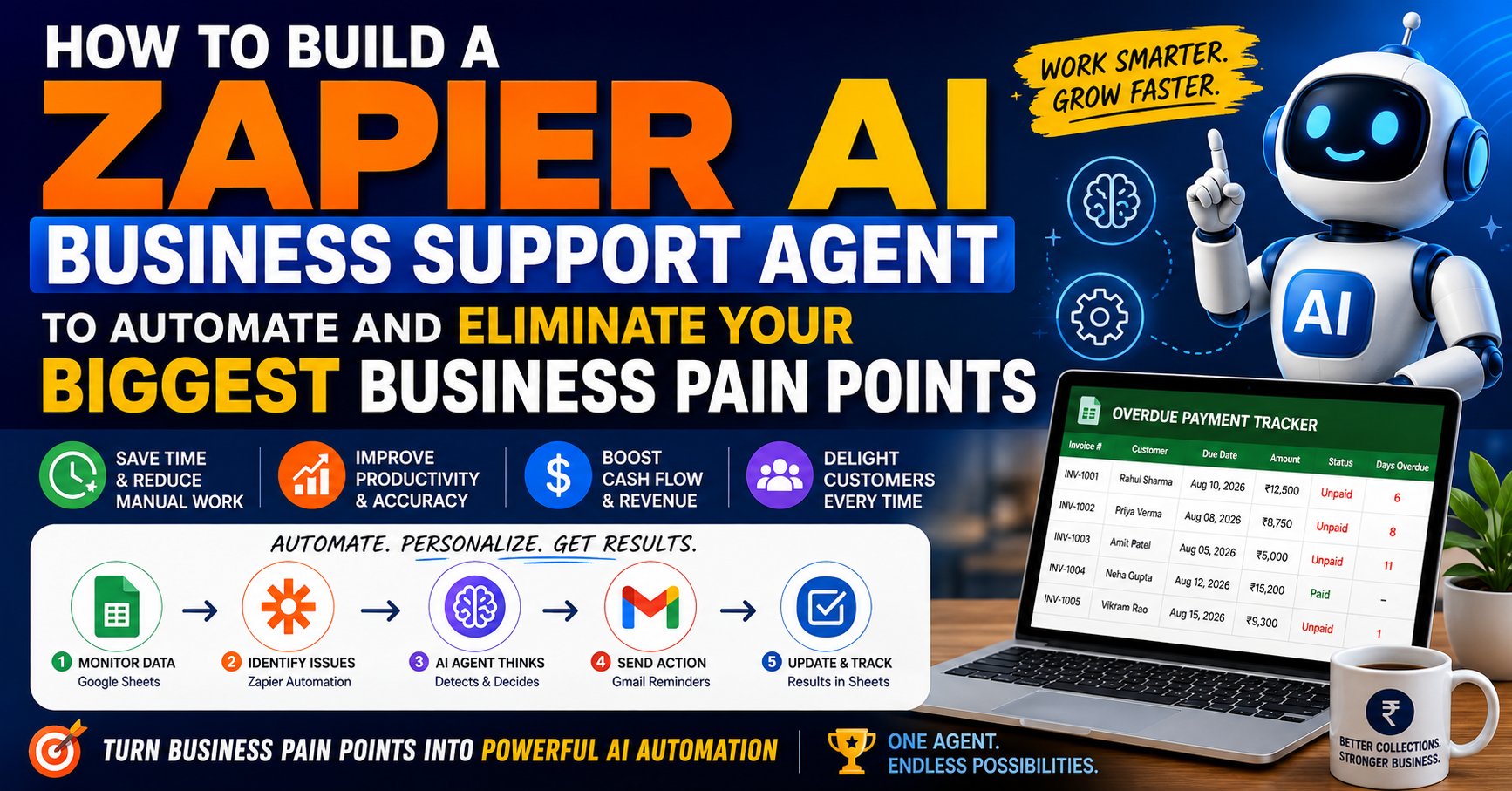
The bigger idea is not simply to automate one email, but all emails.
It is to create a reusable AI system that identifies a business pain point, understands the required workflow, performs repetitive work automatically, records what happened, and knows when a human should take over.
Who this guide is for: operations leads, founders, accounts/finance teams, and no-code builders who already use (or are willing to use) Google Sheets, Gmail, and Zapier, and who want a safe, production-minded blueprint rather than a toy demo.
What you’ll walk away with: a complete architecture, a step-by-step build for an overdue-payment agent, ready-to-use email templates, a controlled AI prompt, a testing checklist, cost and time estimates, and a pattern you can reuse for five or more other business pain points.
Jump to a section: What is it? · Pain points · Why Zapier · Architecture · Build the Zap · Templates · Testing · Cost & time saved · More agents · Scaling beyond Zapier · Checklist · FAQ
What Is a Zapier AI Business Support Agent?
A Zapier AI Business Support Agent is an automated workflow that combines business data, workflow automation, AI capabilities, and business applications to handle repetitive operational tasks.
Instead of an employee repeatedly checking spreadsheets, sending emails, updating records, and scheduling follow-ups, the automated system can perform those tasks according to predefined business rules.
For example, an accounts team may spend time checking which invoices are overdue and contacting customers.
A Business Support Agent can automate much of that process:
Payment Data
     ↓
Identify Overdue Invoice
     ↓
Apply Business Rules
     ↓
Generate Personalized Message
     ↓
Send Gmail Reminder
     ↓
Update Record
     ↓
Schedule Follow-Up
     ↓
Escalate Exceptions to Human
The same architecture can later be adapted to sales, customer support, administration, operations, reporting, onboarding, renewals, and other business processes.
Start With the Business Pain Point—Not the AI
One of the biggest mistakes companies make with AI automation is starting with the technology.
They ask:
“What can we do with AI?”
A better question is:
“What repetitive business problem is costing us time, money, customers, or attention?”
That question leads to much better automation opportunities. A useful way to sort candidate problems is to score them on three things: how often the task repeats, how many minutes it takes each time, and how mechanical (rules-based) the decision is. Problems that score high on all three are the best first candidates.
| Business Pain Point | Possible AI Agent | Automation | Typical Frequency |
|---|---|---|---|
| Overdue payments | Payment Support Agent | Detect overdue invoices and send reminders | Daily |
| Forgotten leads | Lead Follow-Up Agent | Identify leads needing follow-up | Daily / hourly |
| Repeated customer questions | Customer Support Agent | Answer approved questions and escalate exceptions | Continuous |
| Manual appointment reminders | Appointment Agent | Send reminders and track confirmations | Daily |
| Repeated reporting | Business Reporting Agent | Collect data and prepare reports | Weekly / monthly |
| Manual CRM updates | CRM Support Agent | Update records from approved workflow events | Continuous |
| New-customer onboarding | Onboarding Agent | Send welcome sequence, collect setup info, notify the team | Per new customer |
| Subscription/contract renewals | Renewal Agent | Flag upcoming renewals, send notices, log responses | Monthly |
| Support-ticket triage | Ticket Routing Agent | Classify tickets and route to the right queue or person | Continuous |
| Inventory or stock alerts | Inventory Watch Agent | Flag low-stock items and notify purchasing | Daily |
This pain-point approach turns AI from a technology experiment into a business productivity system.
Why Use Zapier for a Business AI Agent?
Zapier is useful because many business processes already involve multiple applications.
A typical workflow might involve:
- Google Sheets for operational data.
- Gmail for communication.
- CRM software for customer records.
- Forms for collecting information.
- Calendar applications for scheduling.
- AI services for text generation and classification.
- Internal tools for business actions.
Instead of building every integration from scratch, an automation platform can coordinate the movement of information between applications.
Zapier’s Google Sheets and Gmail integrations support workflows connecting spreadsheet information with Gmail actions, making them suitable building blocks for this type of automation. See Zapier’s Google Sheets and Gmail integrations.
Zapier vs. Make vs. n8n: Which Platform Fits This Use Case?
Zapier is not the only option, and it is worth knowing where it fits before you commit hours to building on it.
| Platform | Strengths | Trade-offs | Best fit |
|---|---|---|---|
| Zapier | Huge app library, simplest setup, strong Google Sheets/Gmail support, good documentation | Per-task pricing can rise with volume; complex branching is more limited than code-first tools | Teams that want to launch quickly without engineering support |
| Make (formerly Integromat) | Visual, highly flexible branching and data mapping; often cheaper at moderate volume | Steeper learning curve than Zapier | Teams comfortable with more visual complexity in exchange for flexibility |
| n8n | Open-source, self-hostable, full code steps, no per-task ceiling if self-hosted | Requires more technical setup and maintenance | Teams with technical resources who need full control or data residency |
This guide builds the agent in Zapier because it is the fastest path from idea to a working automation for most small and mid-sized teams, but the architecture below is platform-agnostic—everything after the trigger/action layer applies equally to Make or n8n.
Complete Architecture of the Business Support Agent
The architecture separates data, business rules, AI, communication, and human decision-making.
                 BUSINESS DATA
                      │
                      ▼
              Google Sheets /
             Accounting System
                      │
                      ▼
                    ZAPIER
                      │
          ┌───────────┴───────────┐
          │                       │
          ▼                       ▼
    Business Rules            AI Layer
          │                       │
          └───────────┬───────────┘
                      ▼
               Decision / Action
                      │
                      ▼
                    GMAIL
                      │
                      ▼
                 CUSTOMER
                      │
                      ▼
                Record Result
                      │
             ┌────────┴────────┐
             ▼                 ▼
        Continue           Human Review
        Automation         / Escalation
This separation is important because AI should not become the authoritative source of financial or customer data.
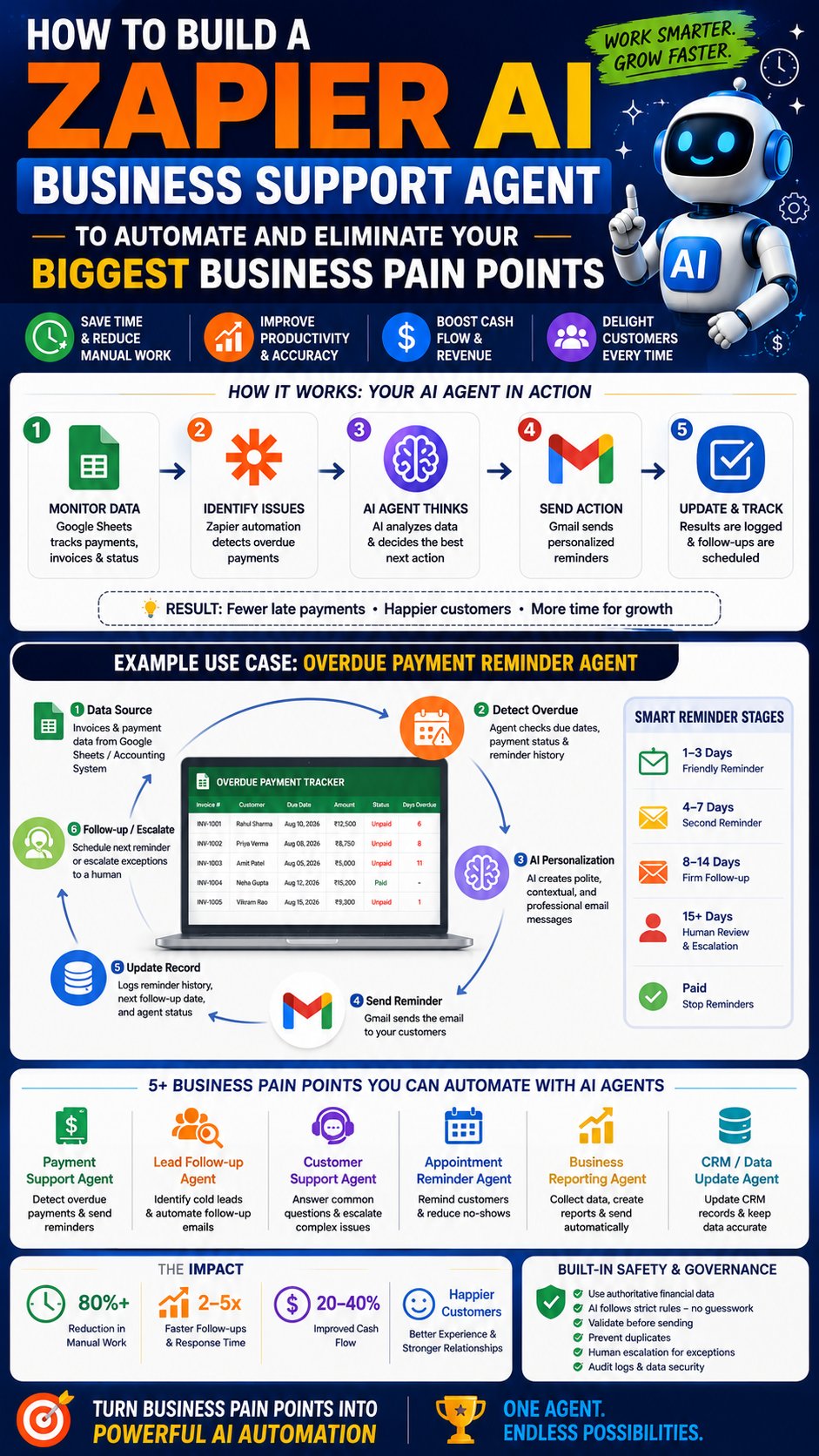
Worked Example: Automating Overdue Payment Support
Consider a company that maintains its invoice information in Google Sheets.
Every morning, an employee manually checks the spreadsheet to determine:
- Which invoices are unpaid.
- Which invoices have passed their due date.
- Which customers have already received reminders.
- Which customers require another follow-up.
This is exactly the type of repetitive process that can be automated.
The workflow becomes:
Google Sheets
     ↓
Check Invoice Records
     ↓
Is Payment Unpaid?
     ↓
Is Due Date Passed?
     ↓
Check Previous Reminder
     ↓
Determine Reminder Stage
     ↓
Generate Message
     ↓
Gmail
     ↓
Update Record
Step 1: Create the Business Data Sheet
A Google Sheet can be used as a simple operational database for a prototype or small business workflow.
A useful payment table might contain:
| Field | Example | Purpose |
|---|---|---|
| Customer_ID | CUST-1024 | Unique customer identifier |
| Customer_Name | Rahul Sharma | Customer name |
| rahul@example.com | Communication address | |
| Invoice_Number | INV-2048 | Invoice reference |
| Invoice_Date | 2026-08-01 | Invoice creation date |
| Due_Date | 2026-08-10 | Payment deadline |
| Amount | 12500 | Outstanding amount |
| Currency | INR | Currency |
| Payment_Status | Unpaid | Current payment state |
| Reminder_Count | 1 | Previous reminders |
| Last_Reminder_Date | 2026-08-14 | Most recent reminder |
| Next_Reminder_Date | 2026-08-18 | Next planned action |
| Agent_Status | Awaiting Payment | Workflow state |
| Last_Action | Reminder Sent | What the agent last did |
| Message_ID | Gmail thread/message ID | Ties the record to the actual sent email for auditing |
Clear headers are important because automation workflows need predictable fields to map information between applications.
Design the Data for Automation
Good automation starts with clean data.
Every important record should have a stable identifier, clear dates, a defined payment status, and a history of previous automated actions.
At minimum, the agent should know:
- Who the customer is.
- How to contact the customer.
- Which invoice is involved.
- How much is outstanding.
- When payment was due.
- Whether payment has been received.
- When the last reminder was sent.
- When another reminder is permitted.
Data-quality tip: use Google Sheets data validation on the Payment_Status and Agent_Status columns (Data → Data validation → dropdown list) so a typo like “unpiad” can never silently break the automation’s filters.
Step 2: Detect Which Payments Are Overdue
The basic rule is simple:
Current Date > Due Date
AND
Payment Status != "Paid"
However, a production-quality workflow should include more safeguards.
IF
    due_date < today
AND
    payment_status NOT IN ("Paid", "Cancelled", "Disputed")
AND
    customer_email exists
AND
    next_reminder_date <= today
AND
    agent_status != "Human Review"

THEN
    continue workflow

ELSE
    stop or route elsewhere
This prevents the agent from blindly sending emails simply because a date has passed.
The Payment System Should Be the Source of Truth
This is one of the most important principles in financial automation.
Suppose an invoice was due yesterday, but the customer paid this morning. If the spreadsheet has not yet been updated, an automation based only on the spreadsheet could send an incorrect overdue notice.
For a serious financial workflow, the authoritative accounting, ERP, invoicing, or payment system should determine whether the invoice is actually unpaid.
Step 3: Build the Zapier Workflow
Now connect the individual components into a workflow. Here is the click-path in Zapier’s own terminology, so you can follow along inside the Zap editor.
3.1 Choose the Trigger
The workflow needs a starting event. In Zapier, this is the first step of the Zap.
Possible triggers include:
- Schedule by Zapier for a scheduled daily review.
- Google Sheets: New Spreadsheet Row.
- Google Sheets: New or Updated Spreadsheet Row.
- A payment-status change pushed from another app via webhook.
- Webhooks by Zapier for events from another application.
For overdue payments, a scheduled review (e.g., “Schedule by Zapier → Every Day → 8:00 AM”) can be particularly useful because an invoice can become overdue simply because time has passed, with no row change to trigger off of.
3.2 Retrieve the Payment Record
Add a Google Sheets: Lookup Spreadsheet Row(s) action (or loop through rows with a Looping action) to retrieve the relevant customer and invoice fields.
Customer Name
Email
Invoice Number
Amount
Due Date
Payment Status
Reminder Count
Last Reminder Date
Next Reminder Date
3.3 Filter the Workflow
Add a Filter by Zapier step. Only records meeting the business conditions should continue past it.
Paid?
   ↓
YES → STOP

NO
   ↓
Due date passed?
   ↓
NO → STOP

YES
   ↓
Reminder permitted?
   ↓
NO → STOP

YES
   ↓
Continue
3.4 Calculate Days Overdue
Use a Formatter by Zapier → Date/Time → Time Between step to calculate:
Days Overdue = Current Date - Due Date
This value can be used to select the appropriate communication stage. If you want branching logic (e.g., different templates per stage), add a Paths by Zapier step right after this calculation.
Step 4: Create Intelligent Reminder Stages
A professional system should not send the same message repeatedly.
| Days Overdue | Example Action |
|---|---|
| 1–3 | Friendly reminder |
| 4–7 | Second reminder |
| 8–14 | More direct follow-up |
| 15–30 | Escalation warning / accounts-team review |
| 30+ | Human/accounts-team review and collection workflow |
| Paid | Stop future reminders |
| Disputed | Stop automation and escalate |
These are example workflow stages. Each organization should define its own policies, contracts, customer-service standards, and applicable legal requirements.
Step 5: Add AI for Personalized Communication
AI does not need to make the financial decision. Its most useful role here is to improve communication.
Instead of sending:
Your payment is overdue. Please pay immediately.
the agent can generate a more professional and contextual message.
Structured information provided to AI
Customer: Rahul Sharma
Invoice: INV-2048
Amount: ₹12,500
Due Date: August 10
Days Overdue: 6
Reminder Stage: Second Reminder
Tone: Professional, polite, concise
Example personalized message
Subject: Friendly follow-up regarding invoice INV-2048
Hi Rahul,
This is a friendly follow-up regarding invoice INV-2048 for ₹12,500, which was due on August 10.
If you have already completed the payment, please disregard this reminder. If you need any assistance with the invoice, please contact our accounts team.
Thank you.
The AI improves the language while the underlying business data remains controlled. In Zapier, this step is typically an AI by Zapier action (or an OpenAI/Anthropic/Google AI app action), placed right after the Formatter step.
Step 6: Create a Controlled AI Prompt
A useful AI prompt should define the role, objective, limitations, input fields, and output format.
ROLE:
You are a professional business accounts-support assistant.

OBJECTIVE:
Create a concise and polite payment reminder using
only the supplied invoice information.

RULES:
- Never invent financial information.
- Never change the invoice amount.
- Never change the invoice number.
- Never invent a due date.
- Never claim payment is unpaid unless the supplied
  payment status says "Unpaid".
- Never make threats.
- Never provide legal advice.
- Never invent payment instructions.
- If status is Paid, do not generate a reminder.
- Keep the message professional and concise.

INPUT:
Customer name:
Invoice number:
Amount:
Currency:
Due date:
Days overdue:
Reminder stage:

OUTPUT:
Email subject
Email body
Ready-to-Use Email Templates by Reminder Stage
If you would rather start with fixed templates and layer AI personalization in later, here are three copy-paste-ready templates that match the reminder stages above. Merge fields are shown in double curly braces.
Stage 1 — Friendly reminder (1–3 days overdue)
Subject: Friendly reminder — invoice {{invoice_number}}
Hi {{customer_name}},
Just a quick note that invoice {{invoice_number}} for {{amount}} was due on {{due_date}}. If you’ve already sent payment, thank you — please disregard this message. Otherwise, we’d appreciate it if you could take care of it when convenient.
Thank you,
{{sender_team}}
Stage 2 — Second reminder (4–7 days overdue)
Subject: Following up — invoice {{invoice_number}} is now overdue
Hi {{customer_name}},
Following up on invoice {{invoice_number}} for {{amount}}, which was due on {{due_date}} and is now {{days_overdue}} days overdue. If you’ve already paid, please let us know so we can update our records. If you have any questions, reply here and we’re happy to help.
Thank you,
{{sender_team}}
Stage 3 — More direct follow-up (8–14 days overdue)
Subject: Action needed — invoice {{invoice_number}} is {{days_overdue}} days overdue
Hi {{customer_name}},
Invoice {{invoice_number}} for {{amount}} remains unpaid and is now {{days_overdue}} days past its due date of {{due_date}}. Please arrange payment at your earliest convenience, or reply to this email if there’s an issue we can help resolve.
Thank you,
{{sender_team}}
These templates work as the AI’s fallback (see Step 10) and as a starting point if you decide to skip AI personalization entirely — a perfectly valid choice for many teams.
Step 7: Send the Personalized Reminder Through Gmail
After the message is generated and validated, Zapier can pass the recipient, subject, and body to Gmail.
| Gmail Field | Source |
|---|---|
| To | Customer email |
| Subject | AI-generated (or template) subject |
| Body | Validated AI-generated (or template) message |
| Reply-To | Business support/accounts address |
| From Name | Company Accounts Team |
Zapier provides Gmail actions that can be used to automate email workflows. Before scaling an automated email operation, review the applicable Gmail and Zapier sending limits and account policies — high-volume sending is a common reason automated reminder programs get throttled or flagged as spam.
Step 8: Update the Business Record
The workflow should not finish when Gmail sends the email.
The business record should be updated so that the agent remembers what happened.
Reminder_Count = Reminder_Count + 1
Last_Reminder_Date = Today
Next_Reminder_Date = Future Follow-Up Date
Agent_Status = "Awaiting Payment"
Last_Action = "Reminder Sent"
Message_ID = Gmail message ID
This creates workflow memory and helps prevent duplicate emails. In Zapier, this is a Google Sheets: Update Spreadsheet Row action, using the row number or a unique key captured in the earlier lookup step.
Prevent Duplicate Reminders
Duplicate emails can damage customer trust.
The workflow should check previous actions before sending another message.
Useful controls include:
- Reminder count.
- Last reminder date.
- Next reminder date.
- Invoice number.
- Customer ID.
- Payment status.
- Agent status.
A simplified rule could be:
IF
payment_status = "Unpaid"
AND due_date < today
AND next_reminder_date <= today
AND agent_status != "Human Review"

THEN
send reminder
AND
update reminder history
This creates a state-aware workflow rather than a simple one-time automation. As an extra safety net, consider a Zapier Storage or Digest step that records the invoice ID + date it was last processed, so even a duplicate trigger firing (e.g., a Zap re-running after an error) can’t send two emails for the same event.
Step 9: Know When the AI Agent Should Stop
A professional Business Support Agent should know its limits.
Human escalation may be appropriate when:
- The customer disputes the invoice.
- The customer says the payment has already been made.
- The customer requests a payment arrangement.
- The customer claims the invoice is incorrect.
- The customer requests a refund or credit.
- The case involves sensitive circumstances.
- The automated workflow has reached its maximum reminder stage.
- The customer explicitly requests human assistance.
Where escalations should actually go
Set Agent_Status = "Human Review" and then route the notification somewhere a person will actually see it quickly — the sheet alone is not enough:
- Slack: post to a dedicated #accounts-escalations channel with the customer name, invoice number, and reason.
- Email/ticket: create a ticket in your helpdesk tool (or send a direct email) assigned to the accounts owner.
- Task app: create a task in Asana/Trello/ClickUp with a due date so it doesn’t get lost.
Step 10: Build Error Handling
Production automation must assume that applications, APIs, data, and AI services can occasionally fail.
Missing customer email
Do not send. Flag the record for correction.
AI generation failure
Use an approved fallback template (see the templates above) or route the task to a human.
Gmail failure
Do not mark the reminder as successfully sent until the workflow confirms the appropriate action.
Payment status uncertainty
Stop the reminder and verify the status against the authoritative financial system.
Google Sheets error
Do not continue using incomplete or stale information. Log the failure and retry according to the workflow policy.
Zapier-specific tip: turn on auto-replay for the Zap and configure email alerts for Zap errors (Zapier → Zap history → notification settings) so a silent failure doesn’t quietly stop your entire reminder program for days.
The Complete Zapier AI Business Support Workflow
                    BUSINESS DATA
                         │
                         ▼
                  Google Sheets
                         │
                         ▼
                    ZAPIER
                         │
                         ▼
                Check Payment Status
                         │
                  ┌──────┴──────┐
                  │             │
                 PAID         UNPAID
                  │             │
                 STOP           ▼
                         Check Due Date
                               │
                       ┌───────┴───────┐
                       │               │
                    Current          Overdue
                       │               │
                      STOP             ▼
                              Check Reminder Rules
                                      │
                                      ▼
                              Calculate Overdue Days
                                      │
                                      ▼
                              Select Reminder Stage
                                      │
                                      ▼
                               AI Personalization
                                      │
                                      ▼
                                Validate Output
                                      │
                                      ▼
                                    Gmail
                                      │
                                      ▼
                              Update Business Data
                                      │
                                      ▼
                              Schedule Follow-Up
                                      │
                           ┌──────────┴──────────┐
                           │                     │
                        Resolved             Exception
                           │                     │
                          STOP              Human Review
Testing Your Agent Before You Go Live
Do not point a new automation at real customers on day one. Build a small test sheet with fake rows that exercise every branch of the logic, and run the Zap manually against each one.
| Test Case | Expected Result |
|---|---|
| Invoice not yet due | No email sent; workflow stops at the filter |
| Invoice overdue, no prior reminder | Stage 1 email sent; sheet updated with Reminder_Count = 1 |
| Invoice overdue, Next_Reminder_Date in the future | No email sent (duplicate prevention working) |
| Invoice marked Paid | No email sent, regardless of due date |
| Invoice marked Disputed | No email sent; Agent_Status set to Human Review |
| Missing customer email | No email sent; record flagged for correction |
| AI step fails or times out | Fallback template used, or task routed to a human |
| Same trigger fires twice | Only one email sent (duplicate-prevention check holds) |
Once every case behaves as expected, run the Zap live against a handful of real invoices for a few days with the Gmail step pointed at an internal test inbox before switching it to customer-facing sending.
Time and Cost: What This Actually Saves (and Costs)
It’s worth estimating the trade-off honestly before you build.
| Factor | Manual Process | Automated Agent |
|---|---|---|
| Time per invoice reviewed | ~3–5 minutes (check status, write email, update sheet) | Near-zero human time once built |
| Consistency | Varies by employee, day, and workload | Consistent, rules-based, every time |
| Zapier cost | N/A | Each run through the Zap typically consumes one or more “tasks” against your Zapier plan — check current plan limits before scaling to hundreds of invoices a day |
| AI cost | N/A | Small per-message cost for the AI personalization step (often a fraction of a cent to a few cents per email, depending on the model) |
| Build time | N/A | A few hours for a first working version; more for full error handling and testing |
For most teams sending even 20–50 reminders a week, the time saved quickly outweighs the Zapier and AI usage costs — but it’s still worth checking your specific Zapier plan’s task limits and your AI provider’s pricing before rolling this out at high volume.
Business Pain Points You Can Automate With the Same Architecture
The overdue-payment example is only the beginning.
1. Payment Support Agent
Identifies overdue invoices, sends approved reminders, tracks follow-ups, and escalates unresolved cases.
2. Lead Follow-Up Agent
Identifies leads that have not received a follow-up, creates personalized messages, and updates CRM records after communication.
3. Customer Support Agent
Classifies customer requests, retrieves approved information, sends responses, and routes complex cases to human support.
4. Appointment Support Agent
Identifies upcoming appointments, sends reminders, records confirmations, and flags cancellations or no-response cases.
5. Business Reporting Agent
Collects information from business systems, summarizes important changes, creates management reports, and distributes them to authorized recipients.
6. Customer Onboarding Agent
Sends the welcome sequence, tracks which setup steps a new customer has completed, nudges on missing steps, and notifies the account owner when onboarding stalls.
7. Renewal / Subscription Agent
Flags contracts or subscriptions approaching renewal, sends renewal notices on a defined schedule, logs customer responses, and escalates non-renewals to sales or account management.
All seven use the same underlying philosophy:
Business Problem
      ↓
Structured Data
      ↓
Business Rules
      ↓
AI Assistance
      ↓
Automated Action
      ↓
Record Result
      ↓
Human Escalation
When to Graduate Beyond Zapier and Google Sheets
This architecture is intentionally lightweight, which is exactly why it’s a good starting point — but it does have a ceiling. Watch for these signals that it’s time to move part of the stack to something more robust:
- Volume: you’re sending hundreds of automated actions per day and Zapier task costs or Gmail sending limits are becoming a real constraint.
- Data integrity: the spreadsheet is being edited by multiple people at once and starting to produce conflicts or stale data.
- Compliance: you’re handling financial, health, or other regulated data that needs stronger access controls, encryption, or audit logging than a shared spreadsheet provides.
- Complex branching: your business rules have grown so many conditions and exceptions that the Zap has become hard to read or maintain.
- Multiple systems of record: you now need to keep Google Sheets, a CRM, and an accounting system all in sync, rather than treating one as authoritative.
When you hit these signals, common next steps are: replacing Google Sheets with your accounting/CRM system as the trigger and data source, moving complex branching logic to Make or n8n, or building a small custom backend that Zapier (or a direct API integration) calls into. The pain-point-first, rules-then-AI, human-escalation architecture described in this guide carries over directly to any of those platforms.
Security, Privacy, and Governance
Business automation can involve customer information, financial information, internal records, and confidential communications.
Therefore, security should be designed into the workflow from the beginning.
- Give users and applications only the access they need.
- Do not expose unnecessary customer information to AI systems.
- Do not provide unrestricted access to financial systems.
- Validate AI-generated output before sensitive actions.
- Keep business rules separate from AI-generated text.
- Maintain appropriate logs for important automated actions.
- Protect Google Sheets and connected accounts, including using restricted sharing settings and strong account security (e.g., 2FA) on the Google and Zapier accounts involved.
- Review applicable privacy, financial, consumer-protection, and email requirements — for example, data-protection regulations such as GDPR where relevant, and email regulations such as CAN-SPAM, which require accurate sender information and a working unsubscribe/opt-out path for commercial email.
- Define a data-retention policy: decide how long reminder history and customer email content should be kept in the sheet, and archive or delete old rows on a schedule.
How to Measure Whether the Agent Actually Helps
An automation should be judged by business outcomes—not simply by whether the Zap successfully ran.
| Metric | What It Measures |
|---|---|
| Hours saved | Reduction in manual work |
| Automation completion rate | Percentage of workflows completed successfully |
| Reminder delivery rate | Successful communication |
| Payment recovery rate | Business result after reminders |
| Human escalation rate | How often people must intervene |
| Error rate | Workflow reliability |
| Duplicate rate | Quality of automation controls |
| Customer response | Communication quality |
The most important question is:
Did the automation improve the business outcome while maintaining an acceptable customer experience?
Common Mistakes to Avoid
1. Starting with AI instead of the problem
Begin with a clearly defined business pain point.
2. Giving AI financial authority
AI should not independently determine whether money is owed.
3. Sending reminders without checking payment status
A customer may have paid even though the spreadsheet has not yet been synchronized.
4. Automating without safeguards
Use filters, status checks, duplicate prevention, and escalation rules.
5. Sending generic messages forever
Use reminder stages and appropriate communication policies.
6. Giving AI too much customer data
Use data minimization. Provide only the fields required for the task.
7. Ignoring exceptions
Disputes, payment claims, unusual cases, and sensitive requests should be routed appropriately.
8. No audit trail
Record the important actions performed by the automation, including what was sent and when.
9. Treating a spreadsheet as the permanent financial authority
For significant financial operations, use the organization’s authoritative accounting or payment system as the source of truth.
10. Ignoring Gmail sending limits
High-volume email workflows need careful planning around Gmail limits and the organization’s email infrastructure.
11. Measuring automation instead of outcomes
A successful Zap is not necessarily a successful business process. Measure time saved, customer outcomes, recovery, errors, and human workload.
Zapier AI Business Support Agent Implementation Checklist
- Identify the business pain point.
- Define the desired business outcome.
- Map the existing manual workflow.
- Identify the authoritative data source.
- Define the business rules.
- Create structured input fields, with data validation where possible.
- Build the Zapier trigger.
- Retrieve the required data.
- Filter records that do not require action.
- Calculate relevant workflow conditions (e.g., days overdue).
- Add AI only where it provides meaningful value.
- Constrain AI with clear instructions.
- Validate AI output.
- Prepare a fallback template in case AI generation fails.
- Perform the business action.
- Record the result, including an audit trail.
- Prevent duplicate actions.
- Add error handling and Zap-failure alerts.
- Add human escalation with a real notification channel (Slack, ticket, task).
- Test with realistic scenarios, including edge cases.
- Run a limited pilot before full rollout.
- Monitor performance.
- Measure actual business outcomes.
- Review data-retention and privacy obligations.
- Continuously improve the workflow.
Frequently Asked Questions
What is a Zapier AI Business Support Agent?
It is an automated business workflow that combines Zapier, business applications, rules, and optionally AI to identify repetitive tasks, perform approved actions, communicate with customers or employees, record results, and escalate exceptions.
Does a Zapier Business Support Agent need AI?
No. Many workflows can be automated entirely with deterministic rules and fixed templates. AI becomes useful for tasks such as personalization, classification, summarization, extracting information, and handling natural-language content.
What business pain point should I automate first?
Start with a repetitive, high-volume, rules-based process that consumes employee time and has a measurable outcome. Examples include payment reminders, lead follow-ups, customer emails, appointment reminders, and reporting.
Can Zapier automatically identify overdue payments?
Yes, a workflow can evaluate payment records and due dates against defined conditions. For production financial workflows, the authoritative payment or accounting system should provide the actual payment status.
Can AI write personalized payment reminder emails?
Yes. AI can turn verified customer and invoice information into a professional message. It should not invent amounts, dates, invoice numbers, payment status, or other financial facts.
Can the agent automatically stop reminders after payment?
Yes, provided the payment status is reliably updated. The workflow can check the current status before each reminder and stop the process when the invoice becomes paid.
Can this workflow use Google Sheets and Gmail?
Yes. Google Sheets can provide structured operational information while Gmail can be used for automated communication through a connected Zapier workflow.
What happens when a customer disputes an invoice?
The automated reminder process should normally stop and route the case to an authorized human employee or appropriate dispute workflow.
Can the same AI agent automate other business tasks?
Yes. Once the architecture is established, the same approach can be adapted to lead follow-ups, customer support, appointment reminders, CRM updates, reporting, onboarding, renewals, and other repetitive workflows.
What makes an AI workflow a true business agent?
A more agent-like workflow maintains context, evaluates defined conditions, chooses among approved actions, uses business tools, records state, and handles exceptions. A simple trigger-and-email automation is better described as basic workflow automation.
Is Google Sheets suitable for a large financial automation system?
Google Sheets can be useful for prototypes and smaller operational workflows. For significant financial operations, the organization’s accounting, ERP, invoicing, or payment system should generally remain the authoritative source of financial information.
Is Gmail suitable for large-scale automated payment reminders?
Gmail can support automated sending through Zapier, but sending limits and email policies must be considered. Larger organizations may require a dedicated transactional or business-email architecture.
How much does this typically cost to run?
Costs come from two places: Zapier’s task-based plan pricing (each Zap run typically consumes tasks against your plan) and a small per-message AI cost if you use AI personalization. Both are usually modest at the volumes a single business’s payment reminders involve — see the cost and time section for more detail — but confirm current pricing directly with Zapier and your AI provider before scaling.
How do I test the agent before turning it on for real customers?
Build a small set of test rows covering paid, unpaid, disputed, missing-email, and duplicate-trigger scenarios, and run the Zap manually against each one before pointing it at customer-facing sending. See the testing section for a full test-case table.
How do I make the automation safe?
Use authoritative data sources, least-privilege access, deterministic business rules, constrained AI prompts, output validation, audit logging, duplicate prevention, error handling, and human escalation.
Conclusion: Turn Business Pain Into AI Automation
The real opportunity in AI automation is not simply creating impressive AI demonstrations.
It is identifying the repetitive tasks that quietly consume business time every day—and turning those tasks into reliable automated workflows.
A Zapier AI Business Support Agent provides a practical framework:
IDENTIFY THE PAIN
       ↓
DEFINE THE OUTCOME
       ↓
CONNECT THE DATA
       ↓
APPLY BUSINESS RULES
       ↓
USE AI WHERE IT ADDS VALUE
       ↓
AUTOMATE THE ACTION
       ↓
RECORD THE RESULT
       ↓
ESCALATE EXCEPTIONS
       ↓
MEASURE THE BUSINESS IMPACT
The overdue-payment example demonstrates the concept clearly: the system can identify an overdue record, determine whether a reminder is appropriate, generate a professional message, send it through Gmail, update the business record, and schedule the next step.
But the bigger lesson is much broader.
That shift—from AI-first thinking to business-pain-first automation—is what turns individual Zaps into a scalable strategy for building practical AI Business Support Agents.
Back to Introduction · Business Pain Points · Architecture · Testing · Implementation Checklist · FAQ